OBD2 Adapter Won’t Connect: Port Power, App Pairing and Driver Checks
In this guide
You plug in an OBD2 adapter and the app shows “no device,” “cannot communicate,” or “adapter not found.” The temptation is to buy a more expensive scanner immediately. That is often premature because the error can occur at several separate stages: the adapter may not power on, the phone or computer may not recognize it, the app may be holding another connection, or the tool may reach the vehicle but not the requested controller.
Quick answer: Identify which communication link failed before replacing anything. Start with the adapter’s manufacturer’s indicator or status guidance, confirm the supported operating system and application, and distinguish host pairing failures from vehicle-module failures. Do not probe a vehicle connector or bridge pins without a qualified technician and appropriate wiring information.
Four links in the communication chain
| Link | Typical symptom | Safe first check |
|---|---|---|
| Vehicle/adapter power | No normal adapter lights | Vehicle ignition state, connector seating, maker instructions |
| Adapter to phone/computer | Host cannot see interface | Supported USB/Bluetooth type and driver |
| App to interface | App says adapter unavailable | App compatibility, another running app, software settings |
| Interface to ECU | Adapter connects but ECU not found | Supported vehicle/protocol and exact requested module |
An app’s generic “connection failed” message may not identify which link is at fault. A better support request includes the product’s model, light pattern, host OS, app/version and the precise error message.
Step 1: Check the adapter and vehicle interface safely
Verify that the connector is fully seated without forcing it and is not physically obstructed. Confirm the vehicle’s ignition state required by the tool instructions. If the adapter has no expected light or power indicator, consult its manual. A missing indicator alone does not prove a blown vehicle fuse; the device might be switched off, incompatible, damaged or wired differently. Electrical testing of the diagnostic connector belongs to someone with the exact wiring diagram and appropriate equipment.
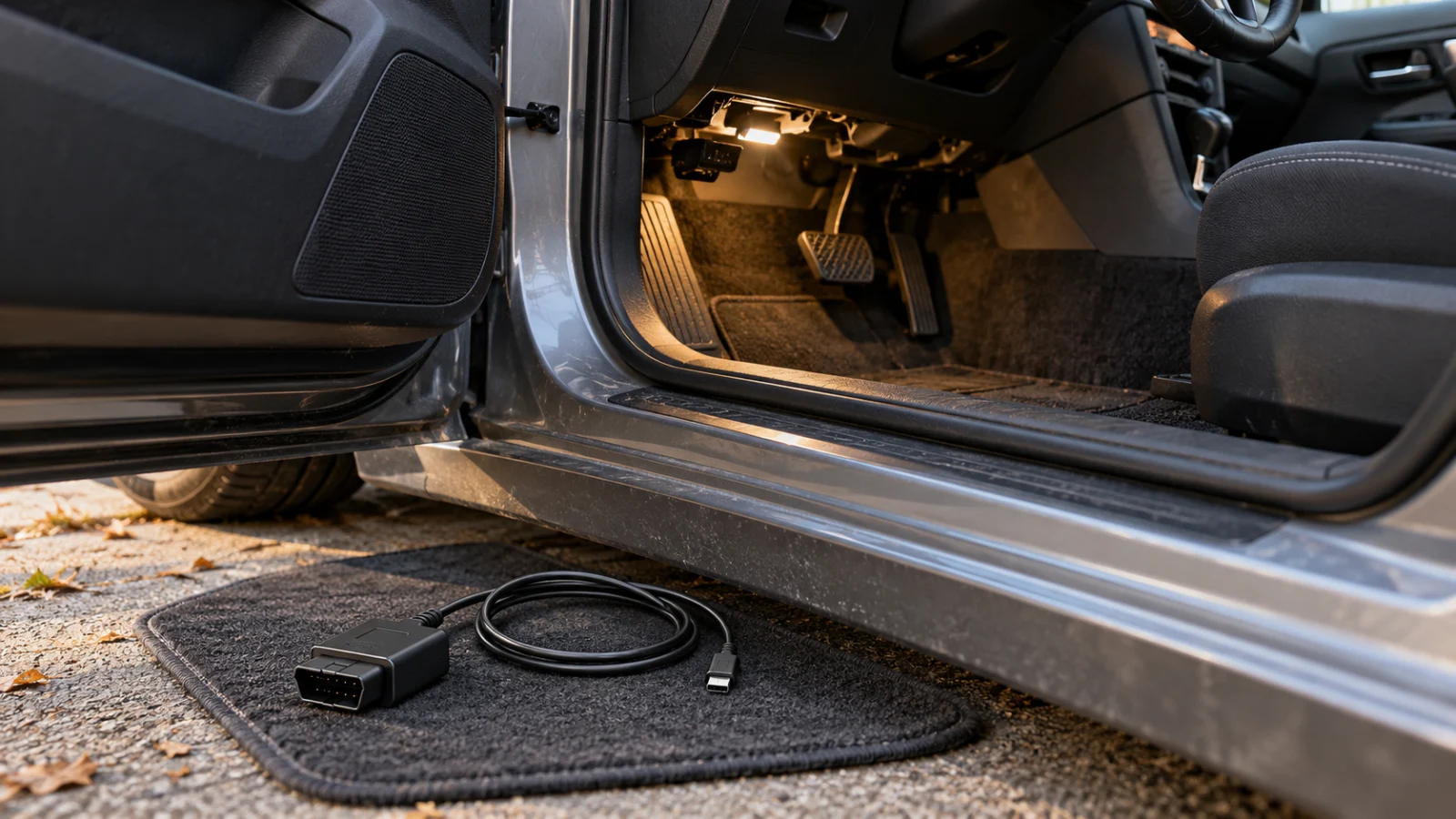
On many vehicles the DLC sits near the driver’s footwell, but positions vary. Do not route cables where they can obstruct pedals, steering or driving. If the port is damaged, stop and arrange proper repair instead of pushing harder.
Step 2: Separate Windows USB issues from vehicle communication
A USB adapter may require a working driver before the software can connect. OBDLink’s October 2026 support guidance for EX explains that abnormal status LEDs can indicate driver-installation trouble and describes a manufacturer-controlled setup process. Before blaming the vehicle, check whether Windows recognizes the adapter and whether the intended program selects the correct port or interface. Avoid downloading random “USB driver fixes” from unofficial sites.
A software update or changed port number can break a previously working connection. Capture the exact error and check the vendor’s current support page. If a replacement cable is contemplated, confirm that it matches the interface and can carry data, not only power.
Step 3: Solve Bluetooth and app conflicts
A wireless adapter must be compatible with the host operating system and the app. OBDLink’s own selection chart separates MX+, EX, CX and LX by iOS, Android and Windows support. The company also cautions that another application may already own the adapter connection, preventing the intended app from opening it. Closing the competing app is a sound first check. Restarting the host app, confirming pairing instructions, and checking application permissions can then be appropriate, according to the maker’s guidance.
Bluetooth Low Energy and older Bluetooth connection methods are not interchangeable at the app level. Some adapters support iOS while another model from the same brand does not. A marketplace listing that says “Bluetooth OBD2” without supported app/OS details is insufficient.
Step 4: Distinguish generic OBD from enhanced module coverage
A device can communicate successfully with the emissions ECU and still fail to retrieve ABS or SRS codes. That may reflect software coverage, the vehicle’s architecture, security gateway restrictions, or a genuine module/network problem. It does not automatically mean the adapter has failed. Our engine codes but no ABS guide and function not supported checklist separate these outcomes.
Test only the operations the maker documents. Don’t attempt an active service operation to determine whether the link works. Using a risky function to diagnose a connection problem adds unnecessary uncertainty.
Evidence-based troubleshooting record
Write down: adapter name and serial/model, device light pattern, host OS version, app/version, vehicle year/make/model, whether generic engine codes read, whether enhanced modules read, exact error wording, and whether a second known-compatible app can see the adapter. If there is an intermittent issue, note whether it changes with connector movement—but do not drive with unsafe cable placement.
This record allows a manufacturer support team to decide whether the problem is firmware, app settings, vehicle coverage or hardware. It is more useful than sending a screenshot saying only “won’t connect.”
When to stop troubleshooting
Stop if the OBD connector appears damaged, electrical behavior is abnormal, the interface overheats, a module fails during a procedure, or the software warns that continuing could alter vehicle settings. Professional diagnosis may be necessary. Do not repeatedly clear vehicle codes to “test the connection”; doing so can erase diagnostic context and reset emissions readiness monitors.
Diagnose the symptom without erasing evidence
Case 1: no adapter lights, app cannot find anything. Before shopping, check the manufacturer’s expected LED behavior, the ignition position required for the tool, and whether the connector is seated. If the vehicle diagnostic port is physically damaged, stop. Do not connect improvised power to the port or jump pins to see whether a device wakes up. A technician can inspect the relevant circuit safely with the right wiring information.
Case 2: computer sees a USB interface, but FORScan does not. This points more toward host software, driver or port-selection issues than toward a dead ECU. Follow the adapter maker’s driver support process. Report the device model, Windows version and actual COM/driver information, rather than repeatedly reinstalling random packages.
Case 3: Bluetooth device pairs, yet the diagnostic app cannot connect. Check whether the app supports the exact adapter and whether another app is holding the interface. OBDLink documents this multi-app conflict. “Connected” in the phone’s Bluetooth screen does not prove that the intended diagnostic application has established its own session.
Case 4: generic engine codes read, but ABS remains unavailable. The interface has successfully communicated at some level. The next question is enhanced module coverage and authorization, not automatically replacement hardware. Consult the related ABS-module communication guide.
FAQs
My phone sees Bluetooth but the app does not. Is the adapter defective?
Not proven. App compatibility, pairing method or another application using the interface may explain it.
My adapter reads check-engine codes but not airbag codes. Why?
Generic emissions communication and enhanced SRS module communication differ. Verify the exact app/module coverage and gateway access.
Is an OBD port fuse always the first problem?
No. A variety of electrical and software conditions can produce a similar symptom. Avoid guessing or bypassing vehicle electrical protection.
Final recommendation
Troubleshoot the host link, app link and ECU link separately. Buy new hardware only when the vendor documentation or competent diagnosis shows that the original interface is unsupported or faulty.
If replacement is justified, compare the phone, app and protocol requirements in our Bluetooth OBD2 adapter guide before ordering another device that may have the same limitation.